Steam on Linux
Quick Tutorial: How to Enable Proton for a Specific Game on Steam
If you're new to Linux after installing Steam, you might get this error :
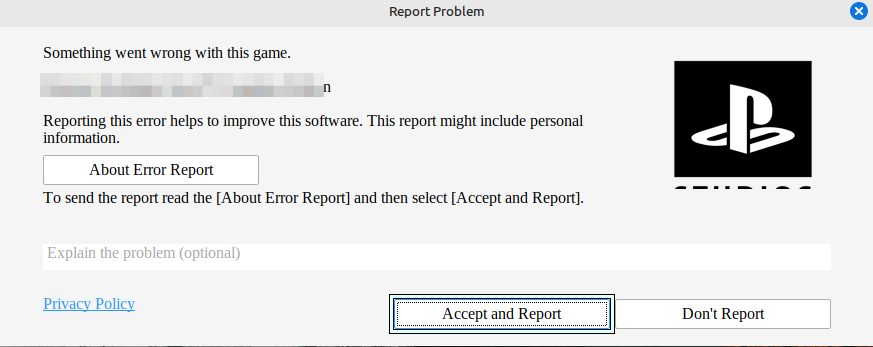
Error Steam with Linux when launching a game
Locate the Game in Your Steam Library
- Open your Steam client.
- Go to your Library.
- Find the game you want to configure.
Access the Game's Properties
- Right-click on the game's title in your Library list.
- Select Properties from the context menu.
Navigate to the Compatibility Tab
- In the Properties window, look for the Compatibility tab on the left-hand menu.
- Click on the Compatibility tab.
Enable Proton
- Check the box next to "Force the use of a specific Steam Play compatibility tool."
- A drop-down menu will appear below the checkbox.
- Select the desired Proton version from the drop-down list (usually the latest version, such as Proton 9.0 or Proton Experimental, is recommended). Sometimes, selecting an older Proton version is needed.
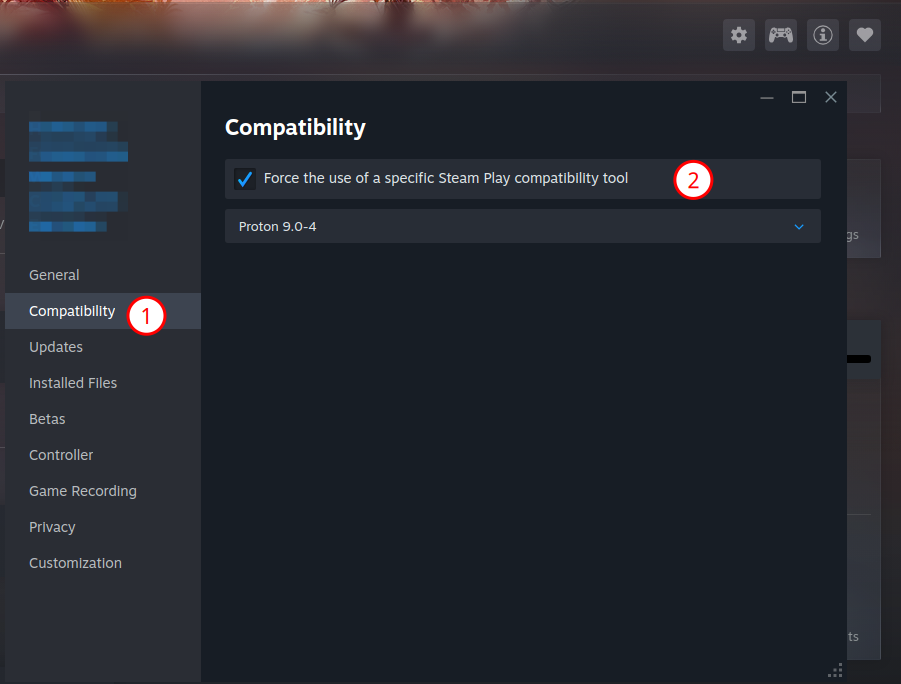
Enabling Proton
Close and Play
- Close the Properties window.
- The game is now set to launch using the selected Proton version.
- Click the Play button to start your game with Proton enabled.